 InteliFix™
InteliFix buying guides · Planning for 2027
Best computer repair shop software in the UK: a 2027 buyer’s guide
Choose a system around the work on your bench, not the longest feature list. Here is what to check before moving your customers, devices and repair paperwork into new software.
Written by the makers of InteliFix. This is a practical selection guide, not an independent ranking of competing products.
What is the best repair software for your shop?
The best computer repair shop software is the one your team can use consistently, from the first booking to collection. A single technician and a multi-person workshop may need different packages, but both need a reliable connection between the customer, the correct device, the work agreed and the final bill.
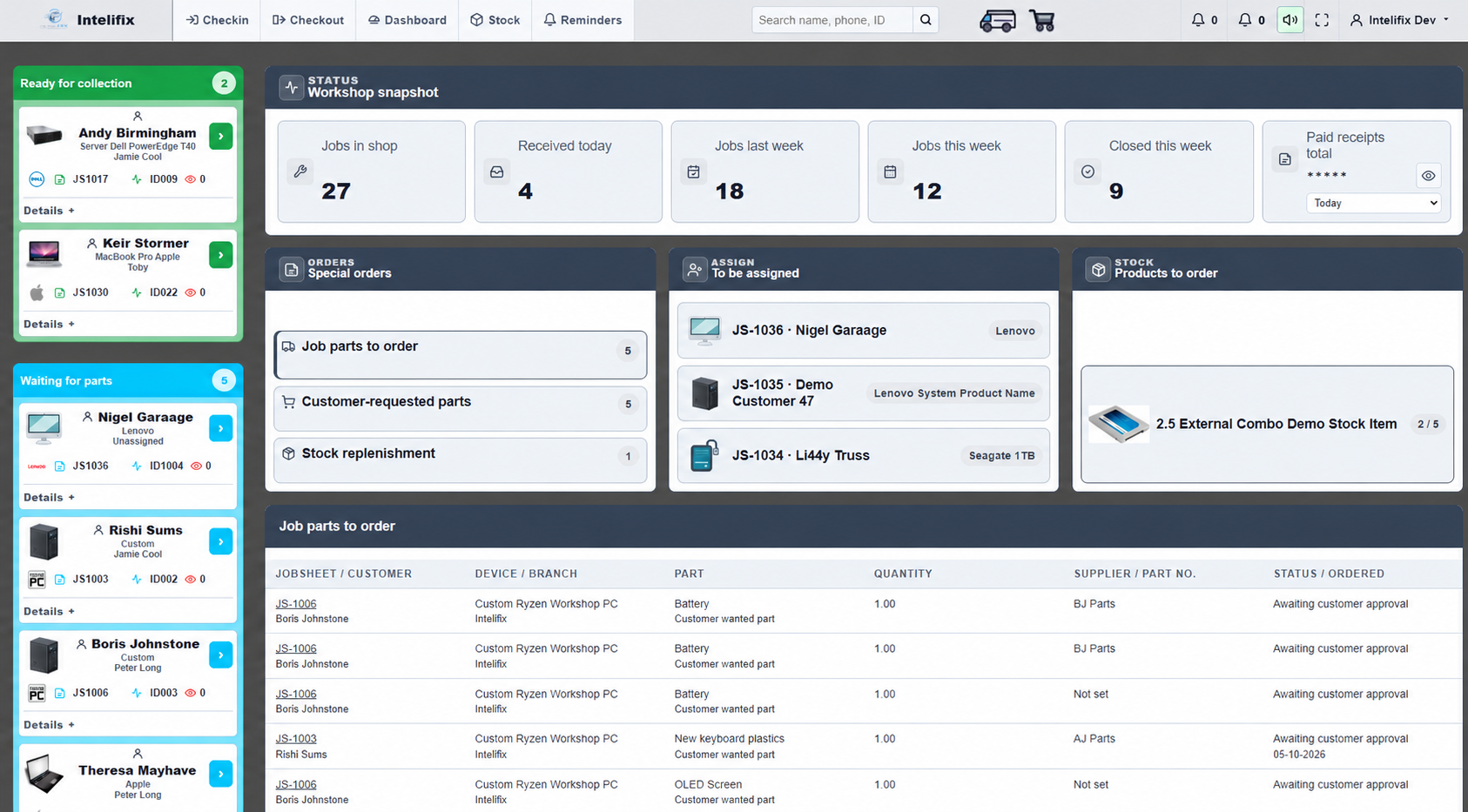
For a UK repair business planning for 2027, start with the everyday problems: devices booked against the wrong record, approvals buried in email, parts waiting to be ordered and notes that never make it onto the customer’s report. Use those problems to judge a demonstration, rather than choosing on appearance alone.
A practical repair shop software checklist
- Customer and device history
- Can one returning customer bring in two laptops, with a separate jobsheet and history for each? Check how existing records are selected before booking another repair.
- Clear booking and job tracking
- Look for a readable intake form, reported issue, included accessories, technician assignment and repair statuses that match the way your workshop works.
- Evidence and technician notes
- Keep arrival photographs, findings, completed actions and customer-facing notes with the job. Check exactly which details appear on documents and which remain internal.
- Quotations and customer approval
- Confirm that you can explain the proposed work, share relevant photographs and retain the customer’s decision against the repair.
- Parts, labour and special orders
- Make sure the description, quantity, serial information and supplier details remain understandable as an item moves from quotation to invoice.
- Payments and collection
- Try deposits, outstanding balances and receipts. An approval, a request for payment and a confirmed payment should not be treated as the same event.
- Permissions and data portability
- Check staff access, owner controls and export options. Ask separately about backups and restoration: exporting records is not the same as backing up an installation.
How InteliFix connects the repair workflow
Book in the customer and the right device
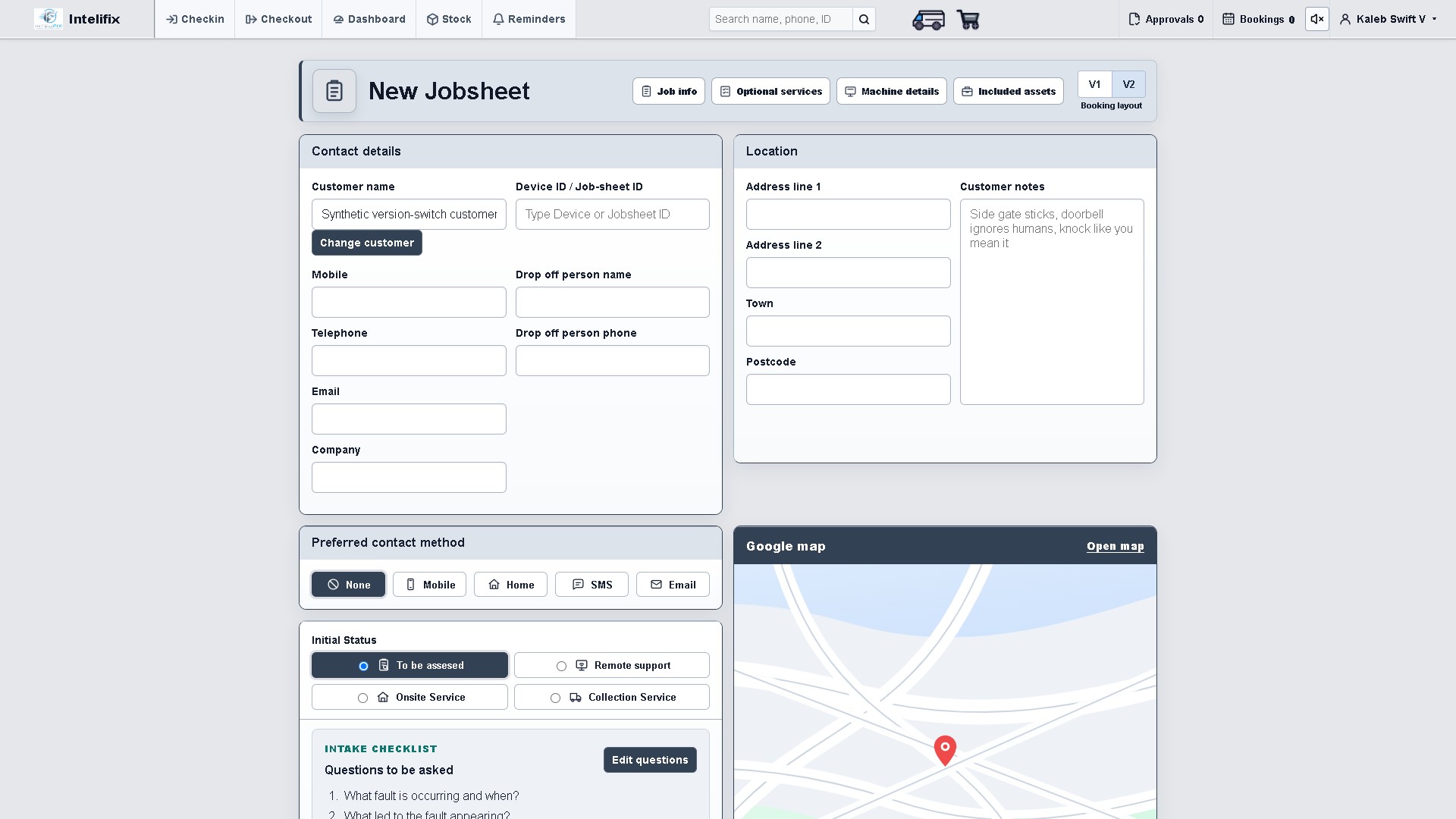
InteliFix links customers, devices and jobsheets so a returning customer does not need a new customer record for each machine. Two booking layouts let the owner choose the intake experience that suits their counter. Record the reported issue and included assets, then keep the repair attached to that device.
Keep the technician’s work with the job
The workbench brings together device details, scans, completed actions, installed software and technician notes. Job photographs can be uploaded from a computer or phone, with captions and individual customer-visibility choices. Your team can work from the repair record instead of piecing together separate messages and paper notes.
Quote, get approval and keep the paperwork connected
Build quotations from parts and labour, include selected job photographs in approval requests and keep the approval with the job. Quotes, invoices, deposits, credit notes and receipts belong to the same connected workflow. Keeping the documents together helps staff answer questions about what was agreed and what remains to be paid.
Explore InteliFix features, including stock and supplier tools, customer communications, document customisation and password-protected business exports. Availability follows the selected package and any optional add-ons.
Cloud or self-hosted repair software?
This decision is about responsibility as much as preference. Think about who will maintain the system, how staff will access it and how you would recover after a problem.
InteliFix Cloud
Consider Cloud if you want a hosted option rather than operating your own application server. Review the package limits, service terms and ongoing subscription before choosing.
Explore InteliFix CloudInteliFix Server
Consider Server if you want a self-hosted installation and can provide the required hosting and administration. Check the technical requirements and current purchase availability first.
Explore InteliFix ServerDo not assume that self-hosting removes hosting, maintenance or backup costs. Equally, check what a hosted service includes rather than assuming every operational task is covered.
Compare the real cost, not just the headline price
Use the same workshop scenario when comparing packages: your staff count, branches, expected repair volume and the tools you actually need. Check setup costs, subscription or licence terms, support, optional modules and third-party service charges.
In InteliFix, Website Bookings + Marketing is an optional add-on. Marketing uses a connected Brevo account for campaign reporting and audience preparation, with editable seasonal HTML templates available for use in Brevo. Connected email tracking also requires Brevo. These are not promises of free third-party sending or an unlimited marketing service.
Use the current InteliFix pricing and package comparison for available plans, extras and limits. A linked pricing page is more useful than an article price that becomes outdated.
Try one complete repair before deciding
A useful demonstration should show more than the dashboard. Use fictional details and walk through a repair that resembles a normal day in your shop:
- Book in a customer with two different devices and check that each has its own jobsheet.
- Add an arrival photograph, a reported fault and an included charger.
- Record a technician finding, a part and the labour needed to fit it.
- Preview a quotation and check the approval and customer-facing information.
- Follow the invoice, balance and receipt workflow without creating a real payment.
- Find the same customer and device again, then review staff permissions and export options.
Ask for a walkthrough where a demo intentionally disables an action. Never use real customer contact details, live payment cards or confidential device credentials just to try software.
Common questions
Is repair shop software the same as a point-of-sale system?
Not necessarily. A point-of-sale system focuses on selling items. A repair workflow also needs to connect the device, reported issue, technician work, customer approval and collection paperwork. Test both sides if your business repairs devices and sells stock.
Can InteliFix handle more than one device for a customer?
Yes. Customers can have multiple devices, with jobsheets linked to the relevant device. This keeps separate repairs under the existing customer record.
Does InteliFix include marketing and website bookings?
Website Bookings + Marketing is an optional add-on, not an assumed inclusion in every package. Marketing connects to the business’s Brevo account. Check the current pricing page for availability and terms.
Should I choose software only because it says “best”?
No. Use your own workflow, package needs and a practical demonstration to decide. This guide is published by InteliFix and does not claim to independently rank every repair software product.
See whether InteliFix fits your workshop
Explore the product with example records, then compare the package that fits the way you work.